Design your own Delta skins, right in the browser.
Skin Studio lays out the screens and buttons for your phone, lets you style the whole thing with control packs, colours, gradients, materials and stickers, then saves a ready-to-install .deltaskin.
Free, no sign-up. Works best on a computer or iPad. Already started? Open the editor ›
What it does
Everything you need to go from an idea to a skin on your phone. Every change shows live, the saved artwork matches the preview, and your work stays editable.
Layouts that fit
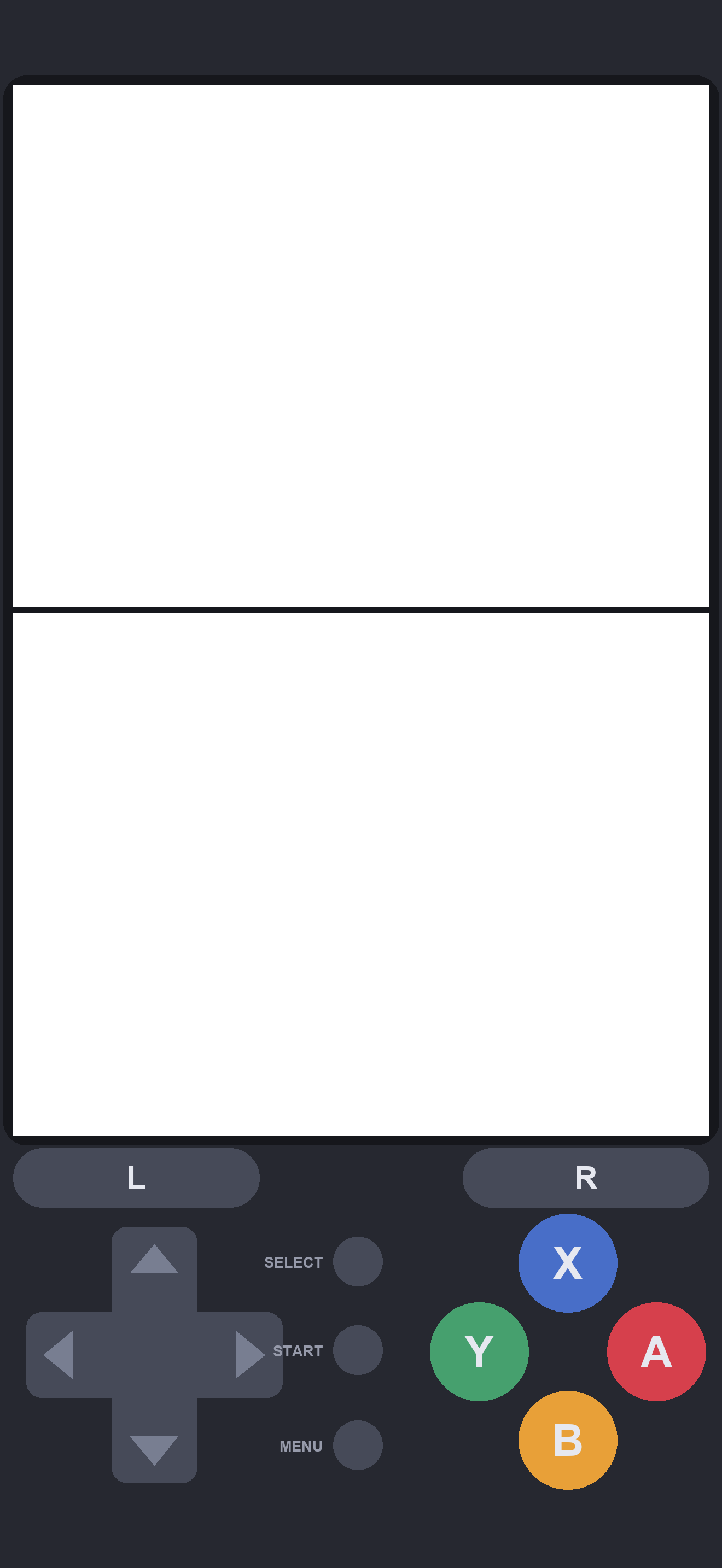
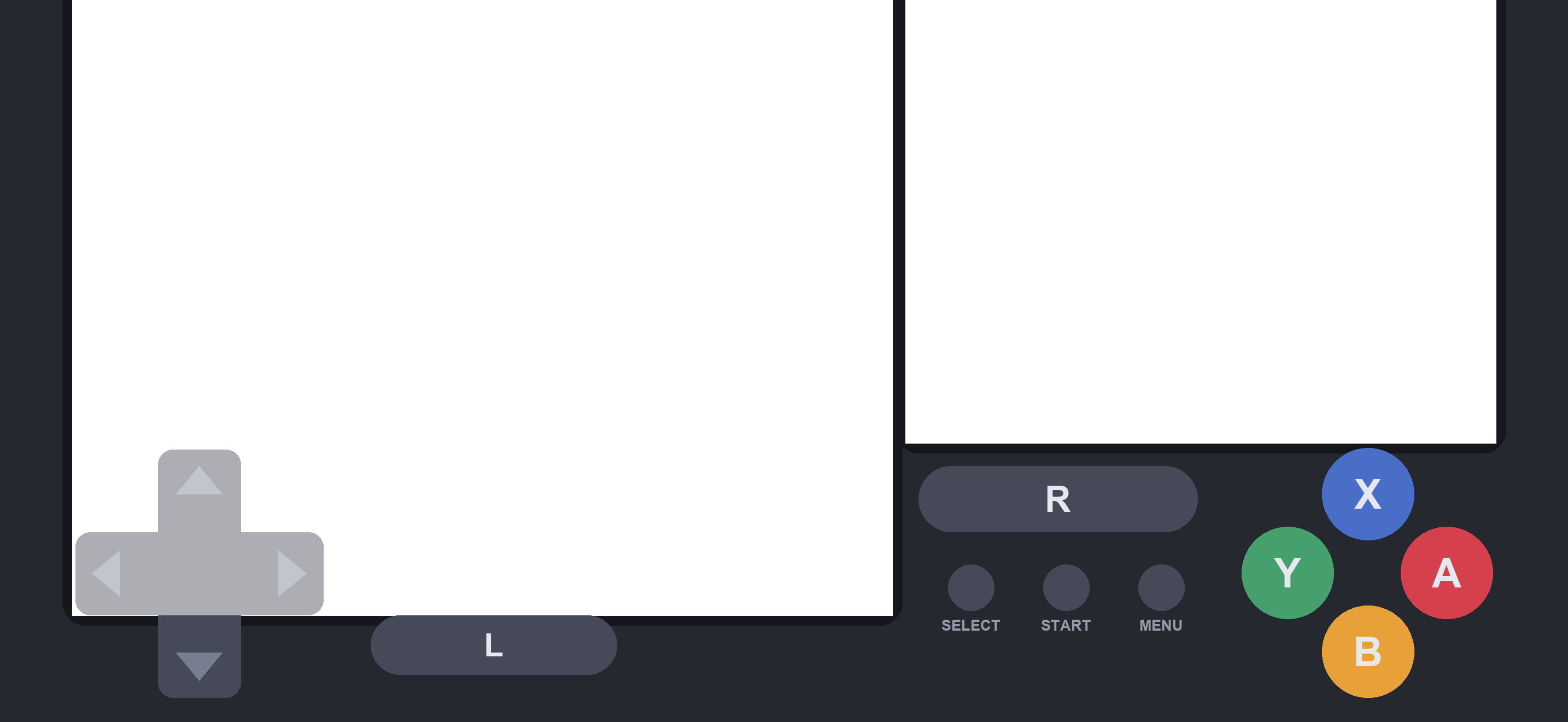
Base layouts built for the iPhone 18 Pro Max, which also fit other recent iPhones. Mix portrait and landscape styles, drag and resize screens and buttons, tune touch areas, and preview the Dynamic Island.
Control packs
Swap in whole sets of buttons in one go, from the flat ProMax Basic to Delta Classic, based on Delta's own skin. Packs are simple files, so you can make your own or cut them out of an existing skin.
Button coloursNew
Recolour the buttons with a colour, gradient or material, all at once, per group (d-pad, A B X Y, L R, small buttons) or button by button. Paint mode keeps each button's own shading.
Your own symbolsNew
The letters and d-pad lines are a separate layer: keep the pack's look, give them their own colour, or swap them for any text in one of ten fonts. One click switches to Xbox or PlayStation (○ × △ □) symbols.
Bodies & materials
Solid colours, gradients, your own images, or procedural materials (warped marble, brushed and hammered metal, translucent plastic) with grain and lighting.
Stickers & finish
Place, scale, rotate and blend stickers, with rounded screens to match the bezel, soft shadows and a moulded-plastic finish.
DS, GBA & controllers
Two-screen DS and single-screen GBA skins, each with a screens-only version for when a game controller is connected.
Save once, keep editing
Saved skins carry your editing setup inside, so reopening one brings back every setting. Delta just sees a normal skin.
Pick up where you left offNew
Your skin is saved in the browser as you work. Refresh or come back later and Skin Studio offers to carry on, or to start something new.
Getting it on your phone
Delta imports skins straight from the Files app, iCloud, OneDrive, AirDrop or a message.
Make it
Start from a base layout and style it however you like.
Save .deltaskin
One click builds the finished artwork and downloads the skin.
Open in Delta
On your iPhone, tap the file, then Share › Delta. It appears in Controller Skins.
How it works
A skin is a zip of artwork plus an info.json that tells Delta where the screens and buttons are. Skin Studio adds two things on top: an editing setup saved inside the skin, and controls packs.
What Skin Studio adds to a .deltaskin
When you save, Skin Studio builds the finished artwork (at 3× for a sharp result) and writes the files Delta needs. Next to them it tucks your editing setup, which Delta ignores.
My-skin.deltaskin
├─ info.json          Delta: where the screens and buttons are
├─ iphone_edgetoedge_portrait.png    Delta: built artwork
├─ iphone_edgetoedge_landscape.png
├─ proj.json          your settings: colours, fills, symbols…
└─ editor/
   ├─ skin/           the layout before your styling
   ├─ pack.controls   the controls pack you used
   ├─ background.img  your background image
   └─ stickers/       each sticker's image
- Delta sees a normal skin. It reads
info.jsonand the artwork, and skips everything else. - Skin Studio sees your project. Open the file again and every setting comes back, ready to change, instead of flat artwork.
- Self-contained. The pack, background and stickers travel inside the file, so it reopens anywhere, even on a computer that doesn't have them.
- No waste. Source artwork that's identical to the finished artwork is stored once, not twice.
How controls packs work
A .controls file is a zip of one transparent image per button and a small controls.json that names them. The editor fits each image into its button on the layout, so the same pack works with every layout.
ProMax-Basic.controls
├─ controls.json     name, credit, suggested colours
├─ dpad.png  a.png  b.png  x.png  l.png  r.png …
├─ a_glyph.png  …     the button's symbol on its own
└─ start_label.png  …   text beside the small buttons
- Buttons use Delta's input names (
a,dpad,start,quickSave…). Anything a pack leaves out is drawn as a plain button. - Symbol layers keep a button's lettering separate from the button itself. That's what lets you recolour a button without recolouring its letter, or replace the letter with your own text.
- Labels sit beside Start, Select and Menu, on whichever side has room.
- Make your own: draw the images yourself, or use the pack tools to cut the buttons out of an existing skin.
Coming soon
What's being worked on next.
More devicesPlanned
Layouts for more form factors, including iPad, so you can design skins for whatever you play Delta on.
iPhone DuoWaiting on Delta
Skins for the iPhone Duo will arrive once Delta adds support for it, so they work properly on your phone from day one.
Community skinsPlanned
Share the skins and control packs you've made, browse other people's, and open any of them in the editor to make them your own.
Changelog
What's new in each release.
Loading…
Credits
Skin Studio is a personal, non-commercial project.
Chrint4
Designed and built Skin Studio, its layouts and the ProMax Basic controls.
github.com/Chrint4 ›Riley Testut
Skins are made for Delta. The Delta Classic controls and the side-by-side landscape layout are based on Delta's built-in Standard DS skin (DSDeltaCore).
deltaemulator.com ›Skin Studio isn't affiliated with Delta. The Delta Classic controls are Delta's own, recoloured grey. The procedural materials use the domain-warping technique described by Íñigo Quílez, written from scratch.